Start at a hospital portal checkpoint
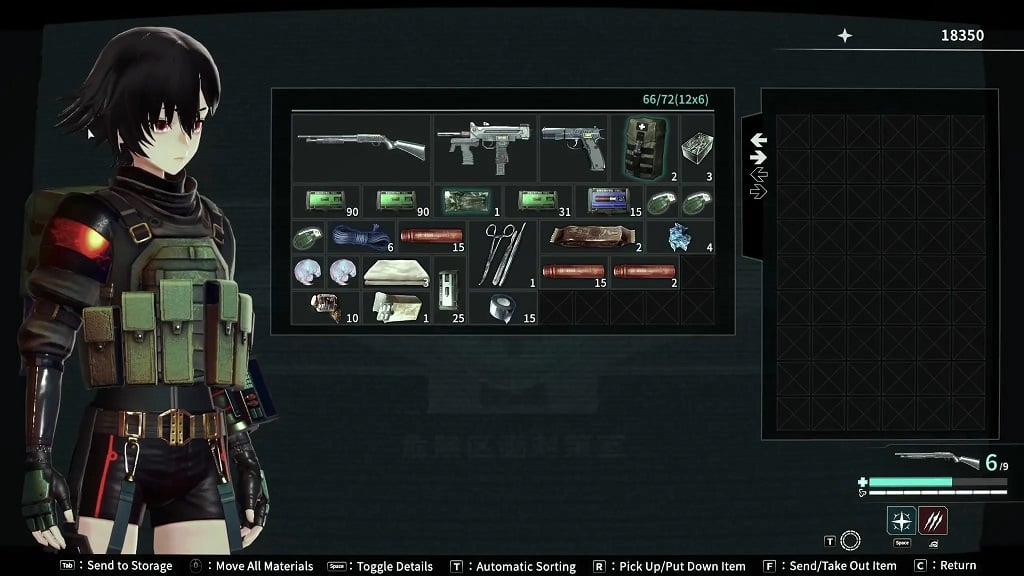
Look for the dark circular portal with a bright blue-violet rim. At a portal checkpoint, open the storage interface. Match the two inventory panes and the storage commands shown below before moving anything.
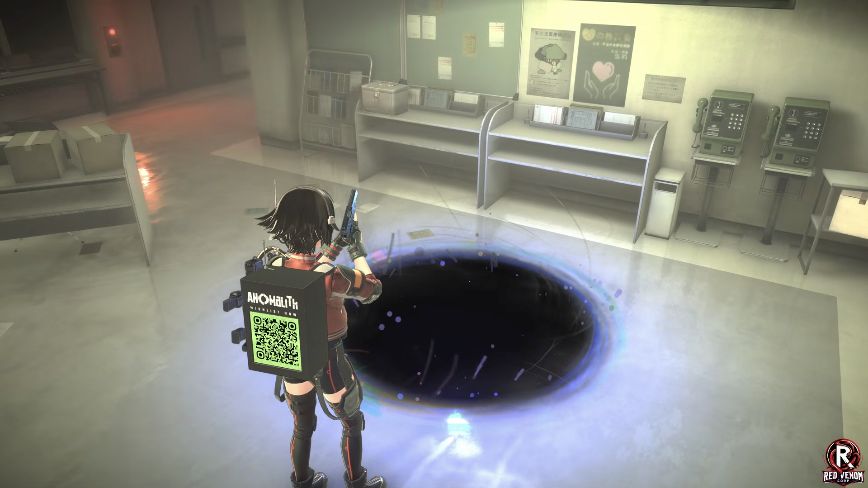
Automaton’s hands-on identifies these checkpoints as places to send crafting materials back to the Anomaly Zone Countermeasures Office hub and free space in the carried case. The instructions below use the commands visible in its storage image.
Move crafting materials out of the carried case
- Check the carried case before sending. Note the materials occupying its slots. Keep the gun, ammunition and other supplies you intend to use in view so you can check them afterward.
- Use Move All Materials for the material batch. Use the prompt beside that exact label in your layout. This is the material action; do not substitute Automatic Sorting.
- Inspect both panes. Check that the materials have left the carried case and appear in storage. The useful outcome is freed case space, not merely a different item arrangement.
Send one item, or take one back out
If you need control over one item, select it and use Send/Take Out Item. Check which pane it is in before using that action: sending from the carried case and taking from storage are opposite directions. Confirm the item appears in the intended pane afterward.
Pick Up/Put Down Item is the separate placement action shown on the same screen. Use it when arranging an item’s position, rather than assuming a moved position means the item has been sent to storage.
Automatic Sorting does not replace sending
Use Automatic Sorting when the items in your case need a tidier arrangement. Sending materials changes where they are kept; sorting changes their arrangement. If your aim is to bring materials back to the hub, check the storage pane after the send action rather than judging success by how neat the case looks.
Check the result before you leave
- Material destination: the intended material should be in storage, with space freed in the carried case.
- Run supplies: check that the weapon, ammunition and other supplies you want for the next encounter are still where you need them.
- Wrong direction: select the item in its current pane and use the displayed Send/Take Out Item command to move it the way you intend.
- Return to play: use the screen’s Return action once the panes show the result you want.
At the hub, use the Workshop computer’s Customize and Develop choices. Check its material requirements before spending resources intended for ammunition.
Sources and version
The storage instructions use AUTOMATON WEST’s October 16 demo hands-on and its menu image. Public PC demo footage shows the hospital portal. Follow the control prompts displayed in your own build.